|
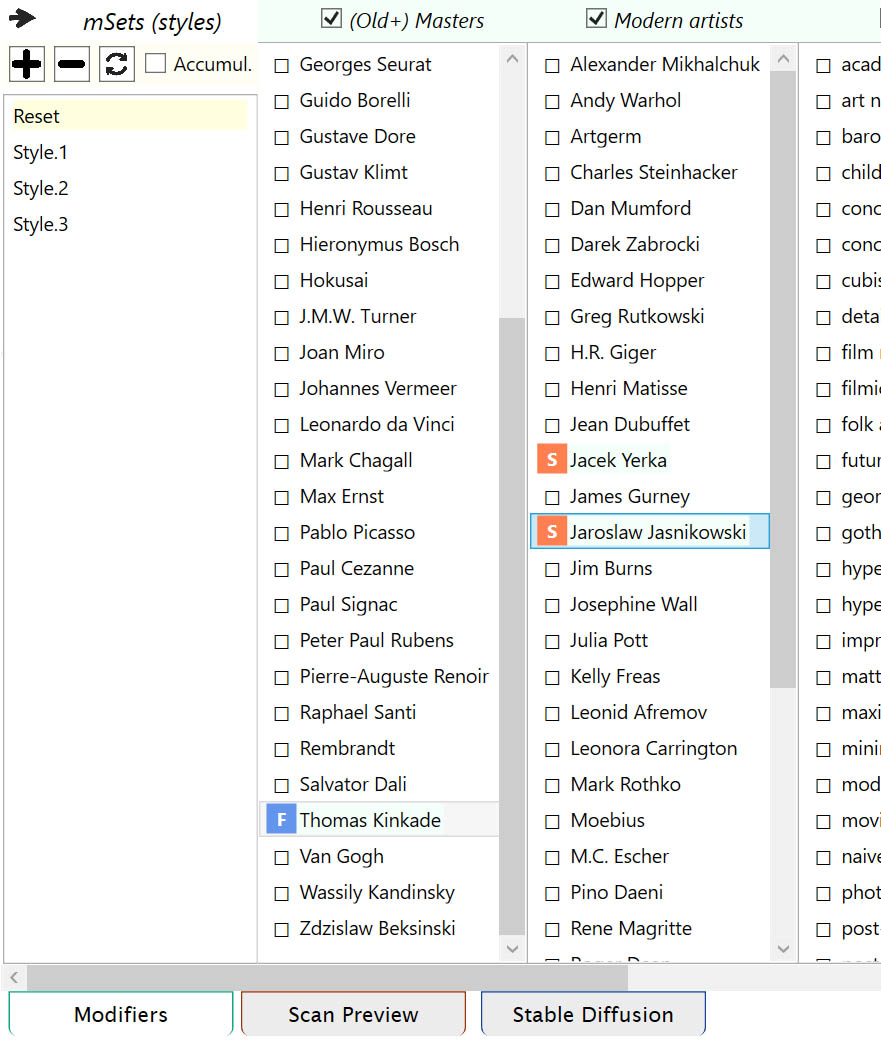
Modifiers are divided into categories and you can switch a category on/off from the check box on the top. In single mode modifiers can only be check/unchecked as all checked modifiers will be added to the prompt. In scan mode you can activate a modifier in two ways. From disable (empty square) you can go to Fixed (F) or to Scannable (S). Fixed type modifier will be present in all generated by Scan prompts. While Scannable type will be included only one (or more) per prompt as Scan will combine every cue with every scannable modifier. As modifiers are often used, there are convenient ways to manipulate them: left/right mouse click on the left of modifier will change modifier active type. Another way to change that type is with keyboard going up and down with the usual keys and once you select your modifier change the type with left/right arrow keys or Enter key. More information about individual modifiers: you can hover over and there will be a hint OR right click on modifier (the text) will open dialog invitation to google that modifier. First panel on the left is for mSets (modifier sets). You can add new mSet via plus button. Remove selected mSet - minus button. Update selected mSet from modifiers selection. Double click on mSet to update modifiers selection from it. If Accumul. checkbox is On double click will add the mSet to the current modifiers selection, if it's Off the current selection will be replaced by that mSet. The first mSet is Reset and it's read-only, it will remove the current modifiers selection (if any). |
|
|
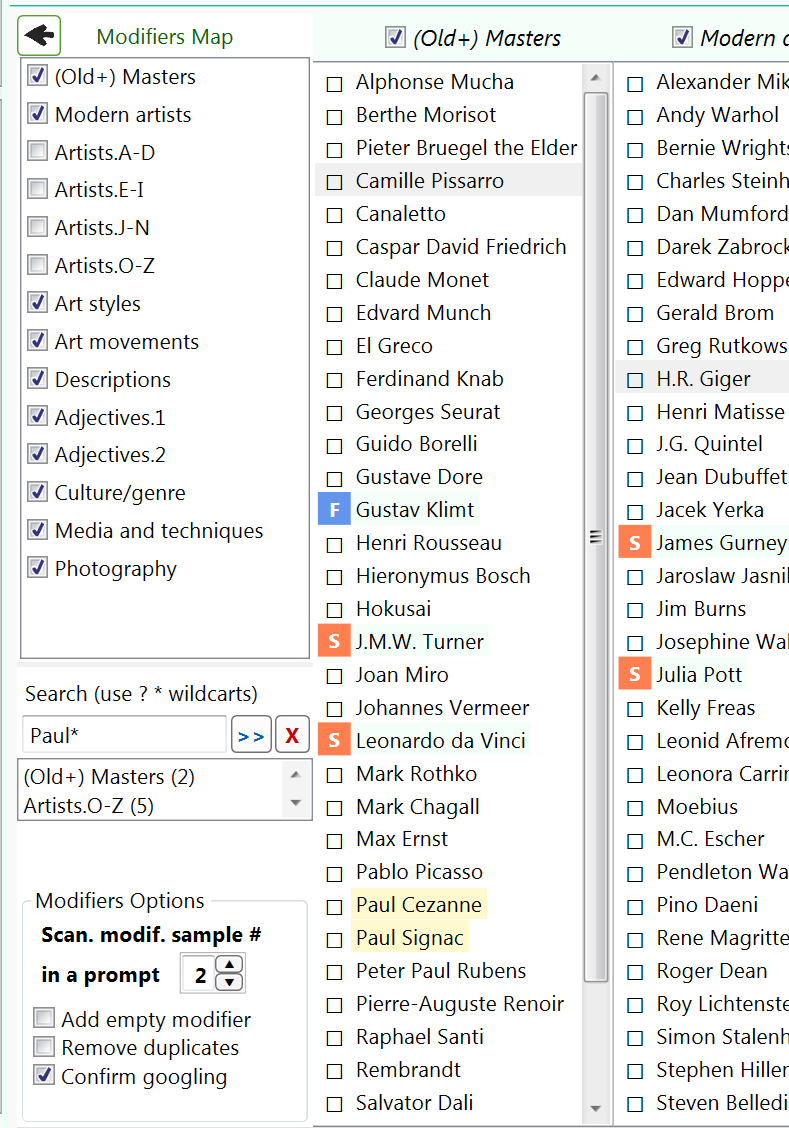
Modifiers map This panel is offering you some modifiers options and tools (click on arrow top/left to open it):
Modifiers Options
|
 |
|
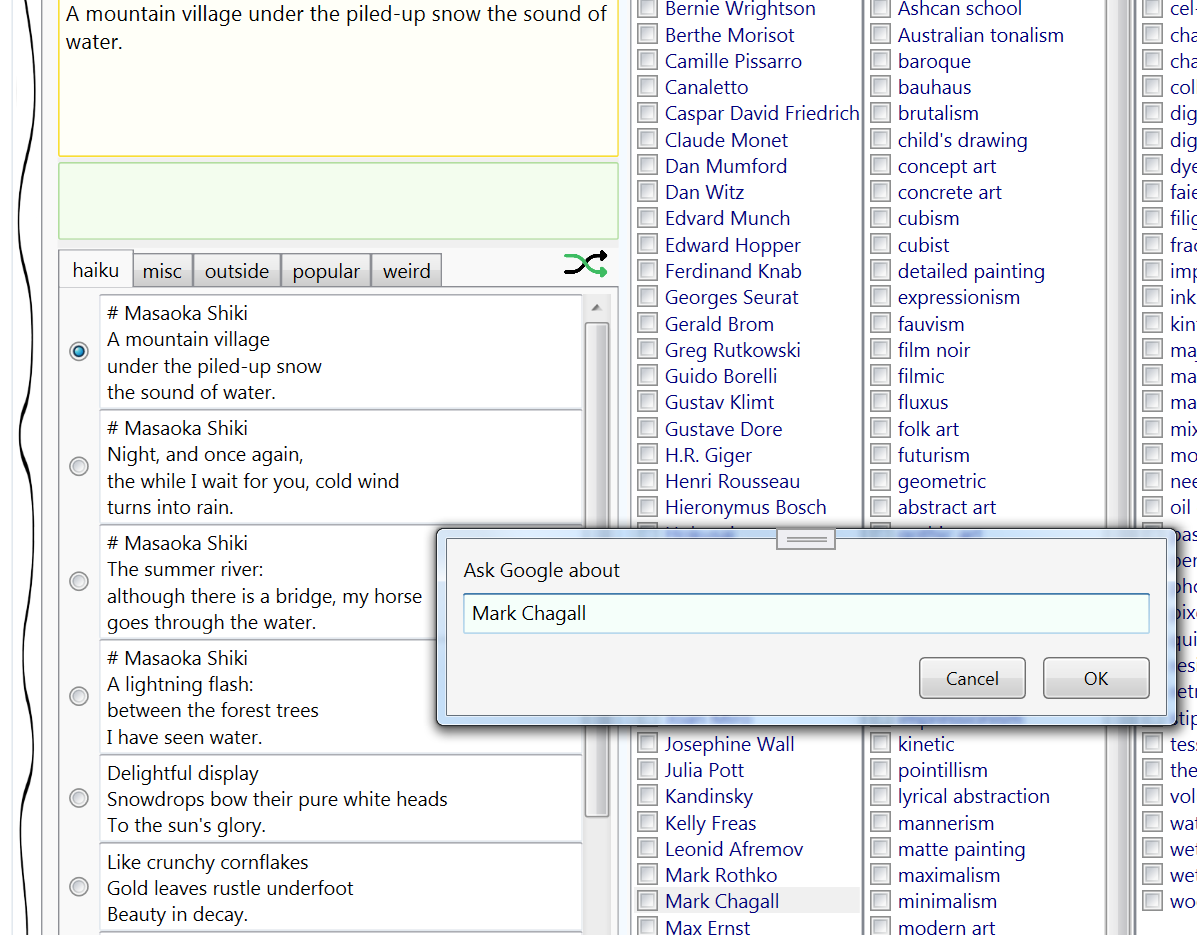
A right click on any modifier and
dialog box will invite you to Google this modifier. As the context here is images, the Google search will show you its image page of results first. That feature is mostly used for artists or styles.
You can create your own modifiers files. It's a simple list of words/names and optionally description separated with = sign. The [header] line will define the name of category you see. The order in which categories will appear is alphabetical of the file name. See exiting files for clues. The modifiers file extension is .mdfr and location is Modifiers folder. |
 |