Custom Scripthea AddonCustom Addon is essentially a protocol to connect and run external text-to-image generator (executable application or script). It could be anything as long as it follows the protocol described here. There two types of addons. Any of them is run by the same bat file (from Scripthea perspective) which makes Scripthea agnostic about the addon's type. Although the addon will behaves differently depending of its type. The major difference between the two types is that the type 1 will be executed (opened and generate an image) each time when Scripthea need an image to be generated from a prompt. The second type will be opened only once per session and generate an image by request from Scripthea. A session could be anything you like: a scan or single generations. |
Before start using the addon you need so select AddonGen from Options/Text-to-image generator and then click of the gears icon next to the combobox. That will open setup/test window. There you need to browse and pick the working folder for the addon (or addon folder). That folder will have text2image.bat to be executed and there the parameters.json (including prompt) the file will be written by Scripthea and read by the addon. At the end generation the image will be written there by the addon. Then Scripthea will register the change in that folder, move to your working selected image depot folder by Scripthea, create an entry in image depot folder and show it in Composer tab. If there is some problem with image generation in the addon, it should write an error message in msgback.txt which will be shown in the log of Scripthea. |
Addon type 1The simpler addon is of type 1. Steps to use addon of type 1 for one image: 1. Scripthea writes parameters.json which includes the prompt to addon folder. See an example of parameters.json bellow here. 2. Scripthea runs text2image.bat which will start the addon every time a new image is generated. The batch file typically contains one line of addon being executed as my_addon.exe or python my_addon.py 3. Scripthea watches the addon folder for any new image file (.png or .jpg). Once the creating of the file is finished, Scripthea will move the image file to image depot folder and create entry to the image depot descriptor (description.idf). |
Addon type 2Type 2 addon is a bit more complicated because it is optimized for speed. The speed gain comes from opening the addon only once per session which spares loading the model multiple times. 1. Scripthea writes parameters.json which includes the prompt to the addon folder (see an example of parameters.json bellow here). Your addon will watch the addon folder for that file and when it detects it it will read it and use it to create a new image. 2. Scripthea runs text2image.bat which is a bit more complicated that type 1 (see text2image-type2.bat below). The bat file will check if the addon is running and start it if not. 3. Scripthea watches the addon folder for any new image file (.png or
.jpg), once the creating of the file is finished. Scripthea will move
the image file to image depot folder and create entry to the image depot
descriptor (description.idf). |
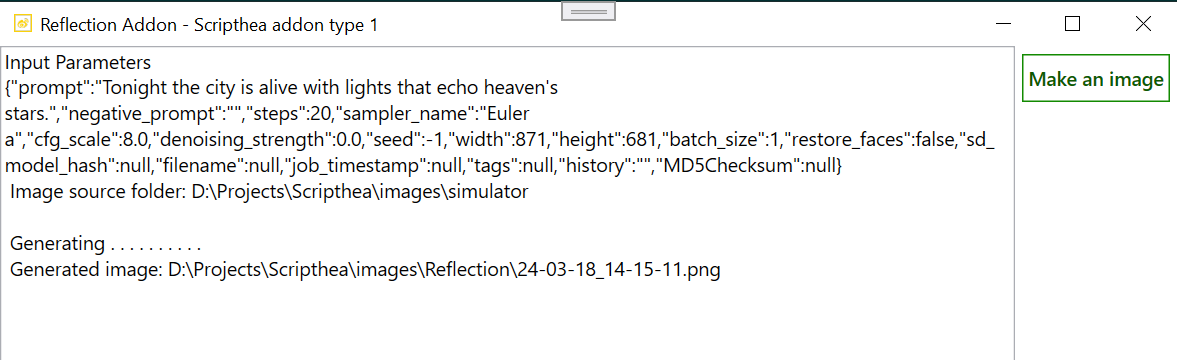
Example addon Reflection.exeReflection application comes with your Scripthea installation and it is not really an image generator but behaves like one for the purpose of addon testing. It can act as addon type 1 or type 2. The control for the type is in the command line respectively reflection.exe --type1 OR reflection.exe --type2 (the default is of type1) In reflection folder you will find two batch files text2image-type1.bat AND text2image-type2.bat When you would like to change the addon type copy any of these to text2image.bat which will be run by Scripthea. As stated above Scripthea is addon type agnostic which means that it behaves the same way in both cases. The difference is in the batch file content and addon behaviour. For more details about Reflection application you can download the
sources of Reflection from HERE. |
|
|
Example parameters.json file {"prompt":"Tonight the city is alive with lights that echo heaven's stars.",
"negative_prompt":"","steps":20,"sampler_name":"Euler a","cfg_scale":8.0, "denoising_strength":0.0,"seed":-1,"width":871,"height":681,"batch_size":1, "restore_faces":false,"sd_model_hash":null,"filename":null, "job_timestamp":null,"tags":null,"history":"","MD5Checksum":null} |
text2image-type2.bat
@echo off |
Simulator (developers only)Simulator is not a real text-to-image generator, it's only for testing some of Scripthea functionalities. When you are in Visual Studio environment and activated (Options/Text-to-image generator) it will pick a random image from a image bank (Simulator folder in images) and present it as it was created by a generator. It has been useful in writing and testing this application and it will be for you if you decide to participate. |